How to Install IPTV on Firestick: Complete 2026 Guide
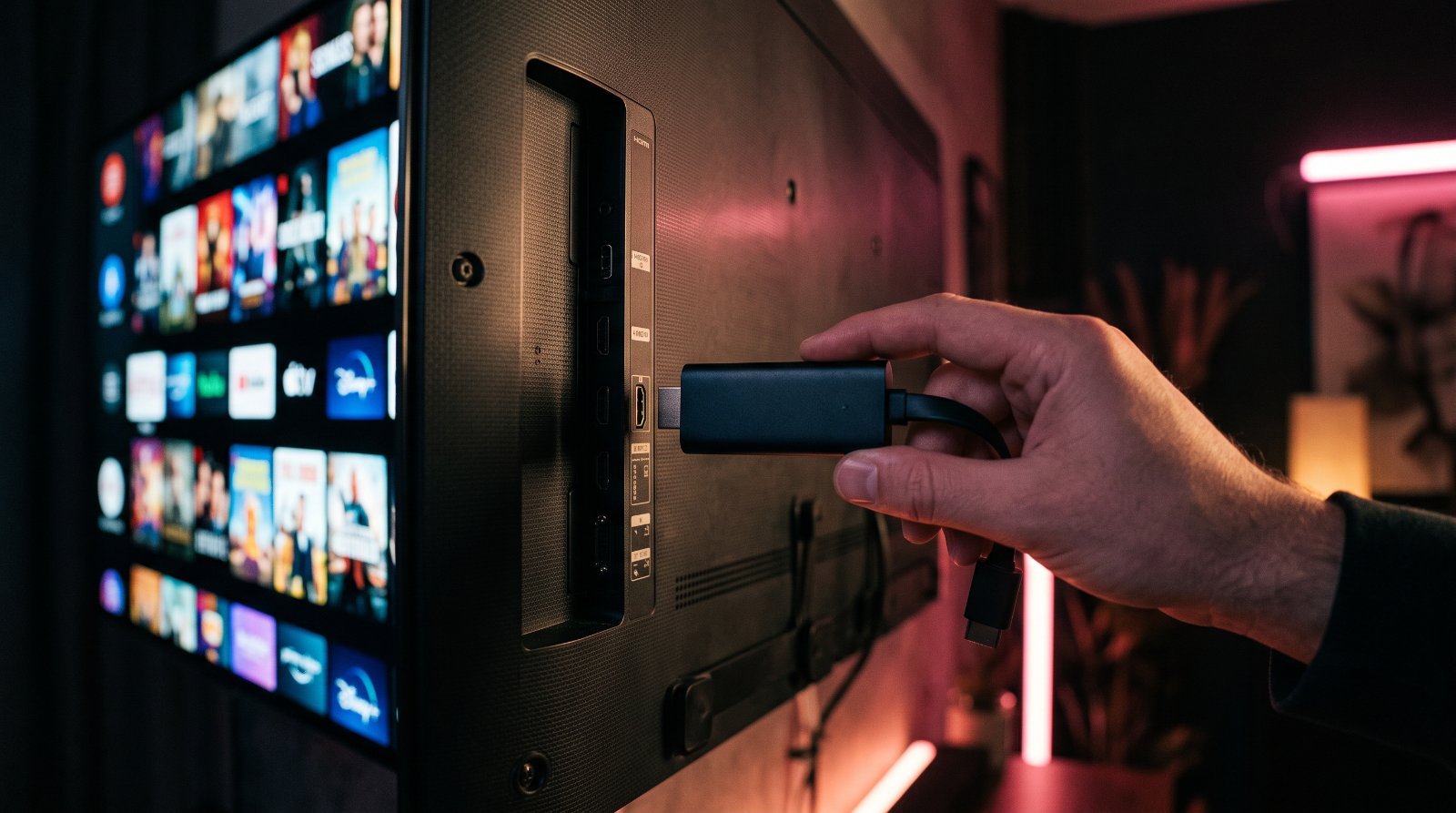
Streaming habits have shifted fast, and the compact Amazon Firestick has quietly become one of the most popular ways to turn any ordinary television into a powerful smart TV. It plugs into a spare HDMI port, costs very little, and runs a version of Android that is perfectly suited to third-party streaming players. That combination is exactly why so many people ask how to install IPTV on Firestick before anything else they set up.
This complete 2026 guide walks you through the entire IPTV Firestick setup from start to finish: what you need before you begin, how to prepare your device, how to install a player app, and how to enter your FireviewTV login so your channels appear within minutes. Every step is written in plain language with accurate, up-to-date instructions, so whether this is your first streaming device or your fifth, you will be watching in no time. By the end you will know exactly how to install IPTV on Amazon Fire TV and how to keep it running smoothly.
Why the Amazon Firestick Is Ideal for IPTV
Before we get into the setup itself, it is worth understanding why the Firestick is such a natural home for IPTV. Amazon’s Fire TV range is built on Fire OS, an Android-based operating system, which means it can run the same feature-rich streaming players that power the best IPTV experiences on other Android devices. Unlike a locked-down Smart TV platform, the Firestick lets you sideload apps, giving you the freedom to choose the player that suits you best rather than being stuck with whatever a manufacturer preinstalled.
The hardware also punches well above its price. Even the entry-level models handle Full HD comfortably, while the 4K and 4K Max versions decode ultra-high-definition streams smoothly and pair beautifully with a service like FireviewTV that broadcasts in genuine 4K/UHD and FHD. Add the included Alexa voice remote, quick app switching and the fact that the whole thing fits in your pocket, and you have a device that is as convenient as it is capable. Fire OS also receives regular updates and supports a wide range of accessories, from game controllers to Ethernet adapters, so your setup can grow with you over time rather than feeling dated after a year.
Portability matters more than people expect. Because your subscription lives on the server rather than the hardware, you can carry a single Firestick between homes, hotels and even a friend’s TV and pick up exactly where you left off. If you are still deciding on hardware, our guide to the best IPTV box for 2026 compares the Firestick against other popular streaming boxes so you can choose with confidence.
What You Need Before You Start
A smooth installation is mostly about preparation. Gather these four things before you touch a single setting and the rest of the process takes just a few minutes.
1. Your FireviewTV login details
When you subscribe to FireviewTV, you receive everything you need to sign in to a player app. This normally arrives in one of two forms: an Xtream Codes login (a server URL, a username and a password) or a single M3U URL that contains your whole playlist. Either works, and most modern apps accept both. Orders are placed through WhatsApp, and because activation typically takes just 5 to 30 minutes, your credentials usually arrive while you are still setting up the Firestick. If you would like to understand the difference between these two formats in more detail, our explainer on IPTV codes for 2026 breaks it down clearly.
2. A compatible IPTV player app
The Firestick does not play IPTV on its own; it needs a dedicated player. The three most trusted choices in 2026 are IPTV Smarters Pro, TiViMate and OTT Navigator, and we compare them side by side further down this guide. If you want a wider overview before committing, take a look at our roundup of the best IPTV app for 2026.
3. A stable internet connection
IPTV is only as good as the connection feeding it. As a rough guide, aim for at least 10 to 15 Mbps for reliable Full HD and 25 Mbps or more for 4K/UHD without interruption. A 5 GHz Wi-Fi network is strongly preferred over 2.4 GHz, and a wired connection is better still, as we explain in the performance section below. FireviewTV runs on anti-freeze servers with roughly 99.9% uptime, so if your stream is stable at the source, your home network is the main variable to get right. If several devices in your home stream at the same time, add a little headroom to those figures so live sport and 4K films hold up during peak evening demand.
4. The Downloader app
Finally, you will use a small, free utility called Downloader to install any player that is not available directly from the Amazon Appstore. Do not worry about finding it now; we install it together in the steps below.
How to Install IPTV on Firestick: Step-by-Step Setup
With everything ready, here is the complete IPTV Firestick setup. Follow the four steps in order, as each one builds on the last, and the whole process rarely takes more than ten minutes from start to finish.
Step 1: Enable Apps From Unknown Sources
Fire OS blocks installations from outside the Amazon Appstore by default, so the first job is to allow them. This is completely safe when you are installing reputable IPTV players.
- From the Fire TV home screen, open Settings (the gear icon in the top menu).
- Select My Fire TV (on some devices this reads Device & Software).
- Open Developer options. If you cannot see it, choose About, highlight your device name, and press the select button seven times until a message confirms you are now a developer, then go back.
- Select Install unknown apps (older Fire OS versions call this Apps from Unknown Sources).
- Find Downloader in the list and switch it to ON. If Downloader is not installed yet, complete Step 2 first and then return here.
Step 2: Install the Downloader App
Downloader, published by AFTVnews, is the standard tool for sideloading apps onto a Firestick, and it is available free from the Amazon Appstore.
- Return to the home screen and select the search icon (the magnifying glass on the far left of the menu).
- Type Downloader and choose it from the suggestions.
- Select the orange Downloader icon, then click Get or Download.
- Once it has installed, open the app and allow any permissions it requests, such as access to storage.
Step 3: Install Your IPTV Player App
Some players, TiViMate among them, can be found by searching the Amazon Appstore directly, in which case you simply install them like any other app. Others are sideloaded using Downloader. To sideload a Firestick IPTV app:
- Open Downloader and make sure the Home tab is selected.
- Click the URL field and type the official download address for your chosen player’s APK, then select Go.
- Wait for the file to download, then choose Install when prompted.
- When installation finishes, select Done, then delete the installer file to free up space; Downloader will offer to do this for you automatically.
Always download player apps from their official source. Sticking to the genuine version keeps your device secure and ensures features such as the EPG and catch-up work correctly. If you would like a device-agnostic walkthrough that covers Smart TVs, phones and MAG boxes too, our complete IPTV setup guide for 2026 has you covered.
Step 4: Enter Your FireviewTV Xtream Login or M3U URL
This is the moment your channels come to life. The exact labels vary slightly between apps, but the principle is identical. Using IPTV Smarters Pro as an example:
- Open the player and, if asked, accept the terms of use.
- Choose Login with Xtream Codes API to use your username, password and server URL, or select Load Your Playlist / Add M3U URL if you were given an M3U link instead.
- Give the connection any name you like, for example “FireviewTV”.
- Carefully type the details exactly as FireviewTV provided them, keeping an eye on capital letters and avoiding stray spaces.
- Select Add User or Sign In, and the app will load your channel list, film catalogue and programme guide.
Within a few seconds you should see the full line-up: 70,000+ live channels, 200,000+ on-demand titles and 7-day catch-up ready to browse, all in crisp 4K/UHD and FHD. Give the electronic programme guide a minute or two to populate fully the first time you sign in, as the app quietly downloads several days of listings in the background. If nothing appears at all, jump straight to the troubleshooting table below.
Ready to Watch in Stunning 4K?
Get instant access to 70,000+ live channels and 200,000+ movies and shows on your Firestick with a FireviewTV plan.
Best Firestick IPTV Apps Compared
Choosing the right player makes a real difference to how enjoyable day-to-day viewing feels. All three apps below work flawlessly with FireviewTV’s Xtream and M3U logins; the best one for you simply depends on how much control you want over the interface and whether extras such as recording or picture-in-picture matter to you.
| App | Best for | Key features |
|---|---|---|
| IPTV Smarters Pro | Beginners and quick setup | Xtream Codes and M3U support, built-in EPG, catch-up playback, multi-screen viewing and a clean, simple layout |
| TiViMate | Best all-round experience | Polished programme guide, multiple playlists, favourites and grouping, picture-in-picture, plus recording and scheduling with the premium Companion upgrade |
| OTT Navigator | Customisation and advanced users | Deeply configurable interface, multiple sources, catch-up and archive, hardware and software decoder options and flexible EPG styling |
If you are torn, IPTV Smarters Pro is the easiest place to start, TiViMate offers the most refined everyday experience, and OTT Navigator rewards those who love to tweak every detail. You can switch between them whenever you like without affecting your subscription, since your FireviewTV credentials stay exactly the same.
Troubleshooting Common Firestick IPTV Problems
Most Firestick IPTV issues are quick to resolve and almost always relate to the network, the app cache or a mistyped login. Work through the table below before assuming anything is wrong with your subscription.
| Problem | Likely fix |
|---|---|
| Buffering or freezing | Test your internet speed, switch to 5 GHz Wi-Fi or a wired Ethernet adapter, close background apps, restart the Firestick, and lower the stream quality if your connection is limited. |
| App won’t load or keeps crashing | Clear the app’s cache and data (Settings > Applications > Manage Installed Applications), make sure the app is up to date, free up storage, then restart the device or reinstall the player. |
| Channels missing or not loading | Double-check your Xtream login or M3U URL for typos, refresh the playlist and EPG inside the app, and confirm your subscription is active. Simply re-adding the playlist often fixes it. |
| Audio or subtitle issues | Switch the audio track or change the decoder between hardware and software in the player settings, toggle subtitles off and on, and disable audio passthrough if your soundbar or TV struggles with a particular format. |
If a single channel refuses to play while everything else is fine, it is usually a temporary source issue rather than a fault on your device. FireviewTV’s anti-freeze infrastructure and roughly 99.9% uptime mean these moments are rare, and a quick refresh of the app normally restores the stream at once.
Performance Tips for Smooth, Reliable Streaming
Once IPTV is installed, a few small habits keep playback crisp and stutter-free, especially if you watch a lot of live sport or 4K content.
- Use a wired connection. A Fire TV Ethernet adapter plugs into the power port and delivers a far more stable feed than Wi-Fi. It is the single most effective upgrade for anyone who suffers from buffering during busy evening hours.
- Restart regularly. Fire OS holds streaming apps in memory, and performance can drift after days of standby. A weekly restart (Settings > My Fire TV > Restart) clears things out and keeps the device responsive.
- Keep storage and cache in check. Firesticks have limited storage, so remove apps you never use and clear player caches occasionally to prevent slowdowns.
- Mind the heat. If your Firestick is tucked tightly behind a wall-mounted TV, a short HDMI extender improves airflow and reduces the thermal throttling that can cause stutter.
- Consider a VPN. A VPN is not required to use IPTV, but some viewers use one for added privacy, particularly on shared or public networks. If you do, choose a reputable provider and a nearby server to minimise any loss of speed.
Pair these habits with a plan that matches your household. FireviewTV has run its service since 2018 and now supports 44,000+ subscribers across Firestick, Android TV and boxes, Samsung and LG Smart TVs, MAG, Apple TV and iOS, Windows and Mac, plus phones and tablets, with single- and two-screen options to suit everyone from solo viewers to busy family homes. You can compare every tier on the plans page and pay securely by Revolut, Wise, bank transfer or crypto, with orders confirmed quickly and discreetly over WhatsApp.
Frequently Asked Questions
Does FireviewTV work on every Firestick model?
Yes. FireviewTV runs on the entire Amazon Fire TV range, from the standard Firestick and Fire TV Stick Lite to the 4K and 4K Max models, as well as the Fire TV Cube. For the best 4K/UHD experience, a 4K-capable model paired with a strong connection is ideal, but any current Firestick will happily stream in Full HD.
How do I get my FireviewTV login details?
You place your order through WhatsApp, and once payment is confirmed your account is activated, usually within 5 to 30 minutes. You then receive your Xtream Codes login or M3U URL, which you enter into your chosen player app exactly as shown in Step 4 above. The whole process is handled discreetly and securely.
Which is the best Firestick IPTV app?
It depends on what you value most. IPTV Smarters Pro is the friendliest for newcomers, TiViMate offers the most polished all-round experience with an excellent programme guide, and OTT Navigator is unmatched for customisation. All three work with FireviewTV, so you can try each and keep whichever you prefer.
Do I need a VPN to use IPTV on a Firestick?
No, a VPN is not required. Some viewers choose to use one for extra privacy, especially on public Wi-Fi, but it is entirely optional. If you do use a VPN, pick a reliable provider and a nearby server so your streaming speed stays high.
Why does my stream keep buffering?
Buffering is nearly always a network issue rather than a fault with the service. Check your internet speed, move to a 5 GHz network or a wired Ethernet adapter, close background apps and restart the Firestick. Because FireviewTV uses anti-freeze servers with around 99.9% uptime, a stable home connection is usually all that stands between you and smooth playback.
Can I watch in 4K on my Firestick?
Absolutely. FireviewTV broadcasts in 4K/UHD and FHD, so with a 4K-capable Firestick and a connection of roughly 25 Mbps or more you can enjoy ultra-high-definition channels and on-demand titles, complete with 7-day catch-up on supported content.
Ready to start streaming?
Join 44,000+ customers since 2018 — 7,000+ channels in 4K, 30-min activation, 24/7 support.