Complete IPTV Setup Guide 2026 (Every Device)
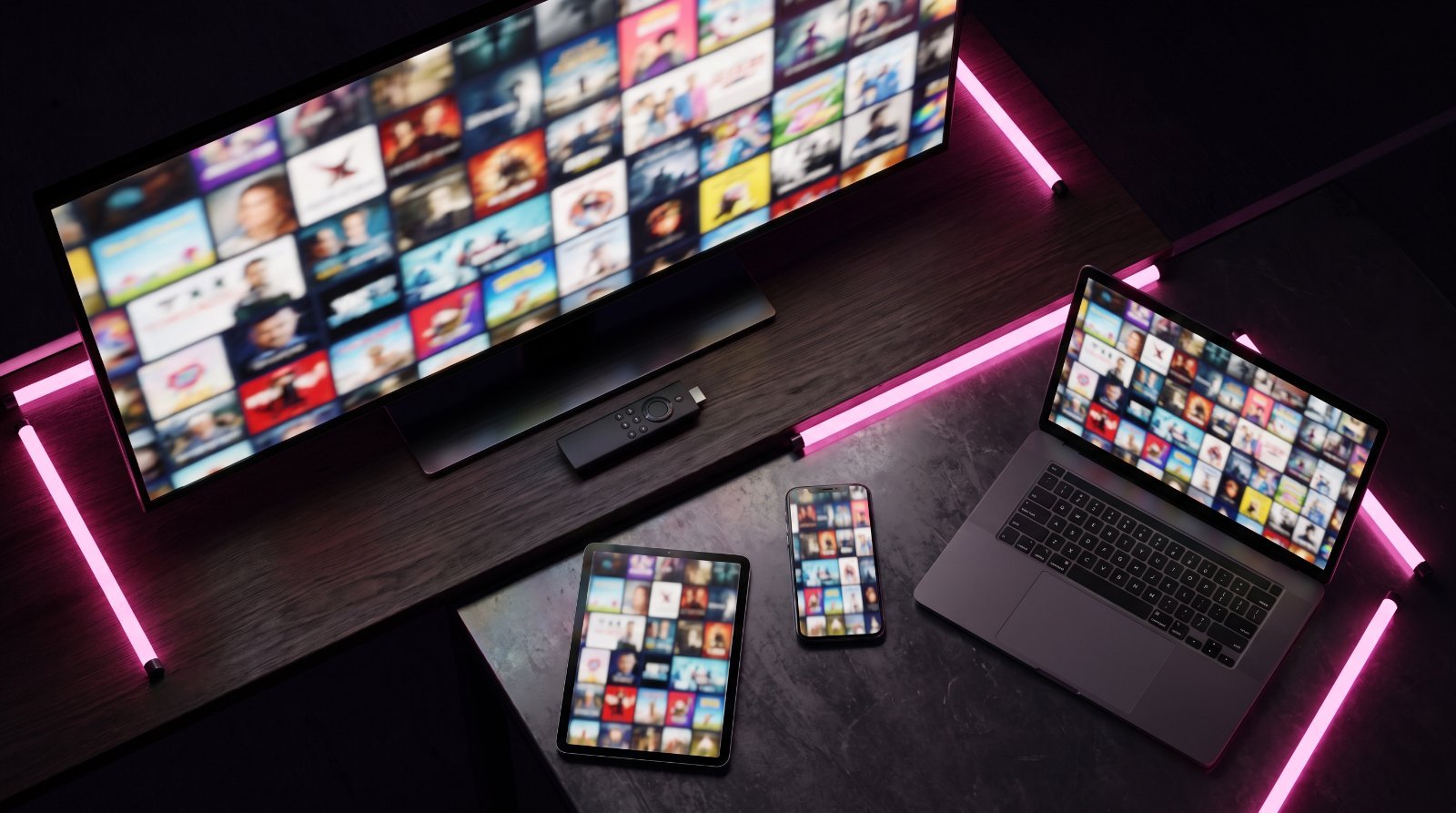
A premium IPTV subscription is only ever as good as its setup. Get the details right and you will be streaming 70,000+ live channels and a library of more than 200,000 on-demand titles within minutes; get them wrong and you will spend the evening staring at a loading wheel. This complete IPTV setup guide for 2026 walks you through everything, from the login credentials you need before you begin to a clear, step-by-step installation for every major device, plus the apps we recommend, a troubleshooting reference and answers to the questions we hear most often.
FireviewTV has been refining this process since 2018 and now supports more than 44,000 subscribers across almost every platform on the market. Whether you are installing on a Firestick in the living room, a Samsung Smart TV in the bedroom or an iPhone for the commute, the underlying principles are identical. Follow along and you will know exactly how to set up IPTV properly the first time, with no guesswork.
What You Need Before You Start
Before touching any device, gather three things: your FireviewTV login details, a compatible player app and a stable internet connection. Spending two minutes on these fundamentals is the single biggest factor in a smooth IPTV setup in 2026, so it is worth doing before you begin.
1. Your FireviewTV login (Xtream Codes or M3U)
Once your order is confirmed, you will receive your access credentials, usually within 5 to 30 minutes. These arrive in two common formats, and knowing the difference saves a great deal of confusion. If you would like a plain-English primer on the codes themselves, our guide to IPTV codes for 2026 breaks each field down in detail.
- Xtream Codes API — you receive three separate pieces of information: a server URL (the host), a username and a password. The app uses these to pull live TV, video-on-demand and the electronic programme guide (EPG) automatically into tidy, sortable categories. This is the preferred method for modern apps such as TiviMate and IPTV Smarters, and it makes managing your subscription far easier.
- M3U URL — a single long playlist link, sometimes paired with a separate EPG (XMLTV) link. It works almost everywhere, including basic players and VLC, which makes it a reliable fallback. The trade-off is that it is generally less organised than an Xtream login and needs a manual refresh to pick up new channels.
Our advice is simple: use the Xtream Codes login wherever your chosen app supports it, and keep your M3U URL in reserve for devices that only accept a playlist.
2. A compatible player app
FireviewTV supplies the stream, not the software, so you will install a third-party player to watch it. There is no single “best” app for everyone; the right choice depends on your device, which is why we have included a full comparison table further down. If you want a deeper look at the options, see our roundup of the best IPTV apps for 2026.
3. A stable internet connection
IPTV is delivered entirely over the internet, so your connection sets the ceiling on quality. As a rough technical guide, allow around 10–15 Mbps for FHD streams and at least 25 Mbps for smooth 4K/UHD playback. If several people in the household stream at once, aim higher. FireviewTV runs anti-freeze servers with roughly 99.9% uptime, so the most common cause of stutter is the local connection rather than the source, something the tips near the end of this guide will help you fix.
How to Set Up IPTV on Every Device
The walkthroughs below cover every platform FireviewTV supports. The pattern is always the same: install a player, choose your login method, enter your credentials and let the app load. Pick the section that matches your hardware.
Amazon Firestick and Fire TV
The Firestick remains the most popular way to watch, thanks to its low cost and portability. For a screen-by-screen version of the steps below, see our dedicated Firestick installation guide.
- From the Fire TV home screen, open Find and search for your player app; TiviMate and IPTV Smarters Pro are both strong choices. Install it directly if it appears in the Amazon Appstore.
- If your preferred app is not listed, install the free Downloader app. Then go to Settings > My Fire TV > Developer Options and turn on Install unknown apps for Downloader.
- Open Downloader, enter the official download link for your player and install the file when prompted.
- Launch the app and choose Login with Xtream Codes or Add M3U playlist.
- Enter your FireviewTV details: for Xtream, type the server URL, username and password exactly as supplied; for M3U, paste the full playlist URL.
- Wait a few seconds while channels, VOD and the EPG load, then start watching.
Android TV and Android boxes
Android TV devices and dedicated streaming boxes are excellent for 4K, and most give you direct access to the Google Play Store. If you are still choosing hardware, our pick of the best IPTV box for 2026 compares the leading models.
- Open the Google Play Store on your Android TV or box.
- Search for and install a player such as TiviMate, IPTV Smarters Pro or XCIPTV.
- Open the app and select Add playlist or Xtream Codes login.
- Enter your Xtream host, username and password, or paste your M3U URL.
- If the app asks for an EPG source, add the EPG URL supplied with your account.
- Save and launch. On boxes without the Play Store, download the app’s file (APK) and sideload it using a file manager, then follow the same login steps.
Samsung and LG Smart TVs
Samsung (Tizen) and LG (webOS) televisions run their own app stores and generally use the M3U method rather than Xtream, often via a one-time registration on the app’s own website.
- From your TV’s app store (Samsung Apps or the LG Content Store), search for and install a supported player such as Smart IPTV, Set IPTV or IBO Player.
- Open the app and make a note of the MAC address and the portal URL shown on screen.
- On a computer or phone, visit that app’s official website, enter the MAC address and add your FireviewTV M3U playlist URL (plus the EPG URL if requested).
- Save your changes on the website.
- Return to the TV and reload the app; your channels and programme guide will now appear.
MAG box
MAG boxes are portal-based devices, which means they connect to a dedicated server portal rather than importing a playlist inside an app. Setup takes a couple of minutes.
- Find your MAG box’s MAC address, shown under Settings > System > About or printed on the sticker underneath the unit.
- Provide this MAC address to FireviewTV when you order so your line can be linked to the device.
- On the MAG, go to Settings > System Settings > Servers > Portals.
- Enter the portal URL supplied for your account into Portal 1 and save.
- Restart the box or reload the portal. Your channels will load straight from the server.
Apple TV and iOS
Apple’s ecosystem is fully supported, from the Apple TV set-top box to iPhones and iPads. All use the same straightforward flow.
- Open the App Store on your Apple TV, iPhone or iPad.
- Download a player such as IPTV Smarters Pro, iMPlayer or GSE Smart IPTV.
- Open the app and choose Xtream Codes login or Add M3U URL.
- Enter your FireviewTV credentials carefully, avoiding any accidental spaces.
- Let the app load, then enable the EPG in the app’s settings if it does not appear automatically.
Windows and Mac
Watching on a laptop or desktop is ideal for a second screen or for testing your line. You have several good options across both operating systems.
- Download a desktop player: IPTV Smarters Pro works on Windows and Mac, VLC runs on both, and Kodi is available for either.
- In IPTV Smarters, open the app and sign in with your Xtream Codes or M3U details.
- In VLC, choose Media > Open Network Stream, paste your M3U URL and press Play (note that VLC will not display an EPG).
- In Kodi, enable the PVR IPTV Simple Client add-on, then add your M3U URL and EPG URL in its settings and refresh.
Android and iOS phones and tablets
Mobile setup is quick and perfect for watching on the move over WiFi or mobile data.
- Install IPTV Smarters Pro, XCIPTV or GSE Smart IPTV from the Google Play Store or Apple App Store.
- Open the app and choose your login method.
- Enter your Xtream server, username and password, or paste your M3U URL.
- Allow the content to load, set your EPG source if prompted, and you are ready to watch anywhere.
Recommended Apps by Platform
The table below summarises the players that pair best with each device, along with the login type they support. Any of these will handle FireviewTV’s 4K/UHD and FHD streams smoothly.
| Platform | Recommended apps | Login type | Notes |
|---|---|---|---|
| Firestick / Fire TV | TiviMate, IPTV Smarters Pro, XCIPTV | Xtream or M3U | Sideload via Downloader if not in the Appstore |
| Android TV & boxes | TiviMate, IPTV Smarters Pro, XCIPTV | Xtream or M3U | Best all-round experience for 4K |
| Samsung / LG Smart TV | Smart IPTV, Set IPTV, IBO Player | M3U (via website registration) | Register the TV’s MAC address online |
| MAG box | Built-in portal | Portal URL + MAC | No separate app needed |
| Apple TV / iOS | IPTV Smarters Pro, iMPlayer, GSE Smart IPTV | Xtream or M3U | Enable EPG in app settings |
| Windows / Mac | IPTV Smarters Pro, VLC, Kodi | Xtream or M3U | VLC plays streams but shows no EPG |
| Phones & tablets | IPTV Smarters Pro, XCIPTV, GSE Smart IPTV | Xtream or M3U | Great for streaming on the go |
Ready to Stream on Any Device?
Choose your FireviewTV plan and get your login within minutes so you can follow this setup guide tonight.
Troubleshooting Common IPTV Setup Problems
Even with a clean installation, the occasional hiccup is normal, and almost all of them have a quick fix. Use the reference table below to diagnose and resolve the issues that come up most often during and after setup.
| Problem | Likely cause | Fix |
|---|---|---|
| Buffering or stuttering | Slow or congested connection, WiFi interference, peak-time load | Switch to a wired connection or 5GHz WiFi, restart your router, and close background apps and downloads |
| Login errors | Mistyped credentials, extra spaces, wrong server URL, or subscription not yet active | Re-enter the Xtream host, username and password exactly as supplied; confirm activation has completed, then contact support on WhatsApp if it persists |
| Missing channels | Playlist not refreshed, category hidden, or outdated app data | Reload or refresh the playlist, unhide categories in the app, and log out and back in to pull the latest list |
| EPG (guide) not showing | Wrong or missing EPG URL, incorrect timezone, or guide not downloaded | Add the correct EPG/XMLTV URL, set your device timezone accurately, and force an EPG refresh in settings |
| Frozen picture or black screen | Full app cache or an outdated player version | Clear the app cache, update the app, and reboot the device |
| Audio but no video | Decoder mismatch on the device | Switch the player’s decoder between hardware and software in playback settings |
Tips for the Best Streaming Quality
A little network housekeeping goes a long way. Because FireviewTV’s servers already deliver stable, high-uptime streams, most quality gains come from optimising your own setup with the following habits.
- Go wired where you can. A direct Ethernet cable is the most stable option by far. On a Firestick or box, an inexpensive Ethernet adapter often ends buffering for good.
- Prefer the 5GHz band. If you must use WiFi, connect to your router’s 5GHz network and stay reasonably close to it. The 5GHz band is faster and less crowded than 2.4GHz.
- Restart regularly. Reboot your streaming device and router every so often, and clear the player’s cache. This clears temporary faults that build up over weeks of use.
- Keep apps updated. Newer app versions bring better decoding and stability, so install updates when they appear.
- Match quality to bandwidth. If your connection is limited, select an FHD stream rather than 4K; you will trade a little sharpness for a rock-solid picture.
- Use capable hardware for 4K. An entry-level box can struggle with UHD, so choose a device rated for 4K playback if that is your priority.
With those foundations in place, you are set to enjoy the full FireviewTV catalogue, from live sport and international channels to a deep on-demand library, in reliable high definition. When you are ready to get started, you can compare options and view our plans and complete your order in a couple of minutes.
Frequently Asked Questions
Do I need any technical skills to set up IPTV?
No. If you can install an app and copy and paste your login details, you can complete the setup. Each device in this guide follows the same simple pattern of installing a player, entering your Xtream Codes or M3U credentials and letting the app load. Most people are watching within five to ten minutes.
How quickly will my FireviewTV service be active after I order?
Activation typically takes between 5 and 30 minutes. Once your order is processed, your login credentials are sent to you and you can begin the setup straight away. The process is handled discreetly and securely.
Should I use the Xtream Codes login or an M3U URL?
Use Xtream Codes wherever your app supports it, as it loads live TV, VOD and the EPG into neatly organised categories and is easier to manage. Choose the M3U URL for players and Smart TVs that only accept a playlist link, or as a reliable backup. FireviewTV can supply both.
Why is my IPTV buffering, and how do I fix it?
Buffering is almost always a local network issue rather than a problem with the stream. Switch to a wired Ethernet connection or your router’s 5GHz WiFi band, restart your router and device, and close any background downloads. If you are watching in 4K on a slower connection, selecting an FHD stream will also help.
Can I watch on more than one device at the same time?
You can install FireviewTV on as many devices as you like, but the number of simultaneous streams depends on your plan. A single-connection plan streams on one device at a time, while the 2-screen plans allow two devices to watch at once. Choose the option that matches how your household watches.
How do I pay and receive my login details?
Orders are placed via WhatsApp, and FireviewTV accepts Revolut, Wise, bank transfer and cryptocurrency. After payment is confirmed, your credentials are delivered within 5 to 30 minutes so you can follow this guide right away. A 10% promotion is available on plans from €70.
Ready to start streaming?
Join 44,000+ customers since 2018 — 7,000+ channels in 4K, 30-min activation, 24/7 support.
2 Responses